What must be ready before I open WebSSH?
The target device must be online in Wantastic, SSH must listen on the device's overlay-reachable address, and your team role must permit WebSSH access.
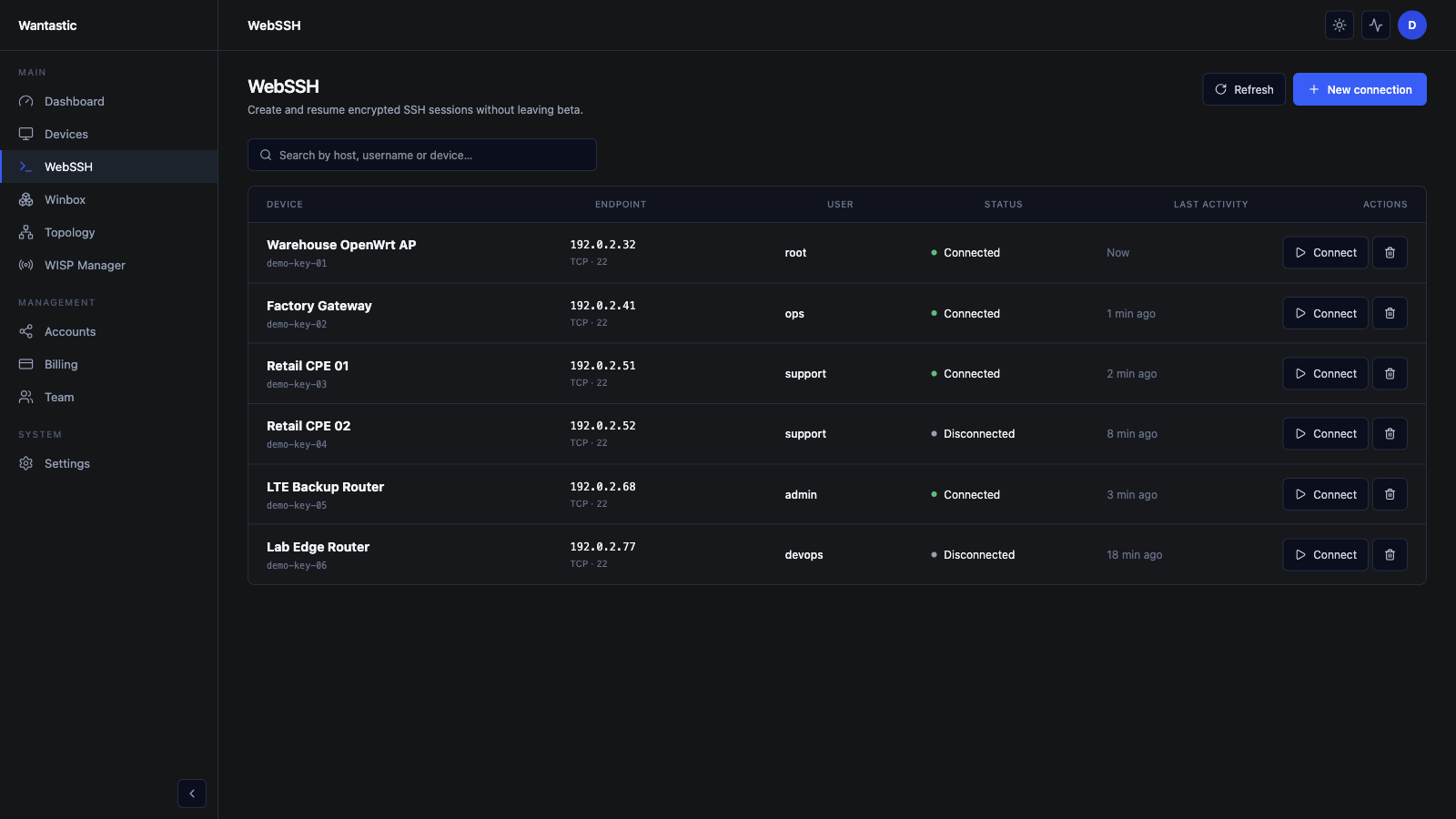 Live beta UI with sanitized demo data
1. Verify the device path
Open Devices and confirm the endpoint is online. If the device runs wantasticd, check the service locally with:
wantasticd status
The device does not need a public TCP 22 rule. SSH travels over the authenticated management path.
2. Create a WebSSH connection
Open WebSSH → New connection. Choose the target endpoint and provide the SSH details required by that host:
- overlay endpoint or selected device;
- SSH port, normally 22;
- login user;
- the approved authentication method;
- a clear connection name for the support team.
Use a dedicated account with limited privileges. Prefer keys or short-lived credentials over a shared root password.
3. Start and use the session
Select Connect from the saved connection. The terminal opens in the browser and the traffic remains on the Wantastic-managed path.
Before making changes, record the device identity and current state:
hostname
ip address show
ip route show
On OpenWrt, use the platform's native tools and save configuration only after the live change is confirmed.
4. Close and audit access
End the shell when the work is complete. Review Dashboard → Recent Activity or the relevant activity view to confirm who opened the session and when.
For teams:
- use one portal account per technician;
- enable MFA;
- remove access when the support window ends;
- avoid copying private keys into tickets or chat;
- keep production and lab connection records separate.
Why does a session fail?
Check in this order:
- Is the device online in Devices?
- Does the overlay route include the target address?
- Is sshd running and listening on the expected port?
- Does the selected user have a valid shell and authentication method?
- Does your Wantastic role allow the connection?
- Is a host firewall blocking SSH on the overlay interface?
This preserves the security model: fix the private path instead of adding a public SSH exception.